
ARVETIQ MAPEDITOR
From a place on the map to a playable mod.
In one program. Eight stations take you from the area to the finished package for Farming Simulator 25. One click tests the map in the game.
- Free, no account.
- Windows 11 · 64-bit
- German and English
- Dark and light
Download
Coming soonThe first version is coming soon.
As soon as the first version is ready, you will find the download here.
Until then: read the guides or see what is inside.
- €0
- editor free
- No account
- needed
- Signed
- with checksum
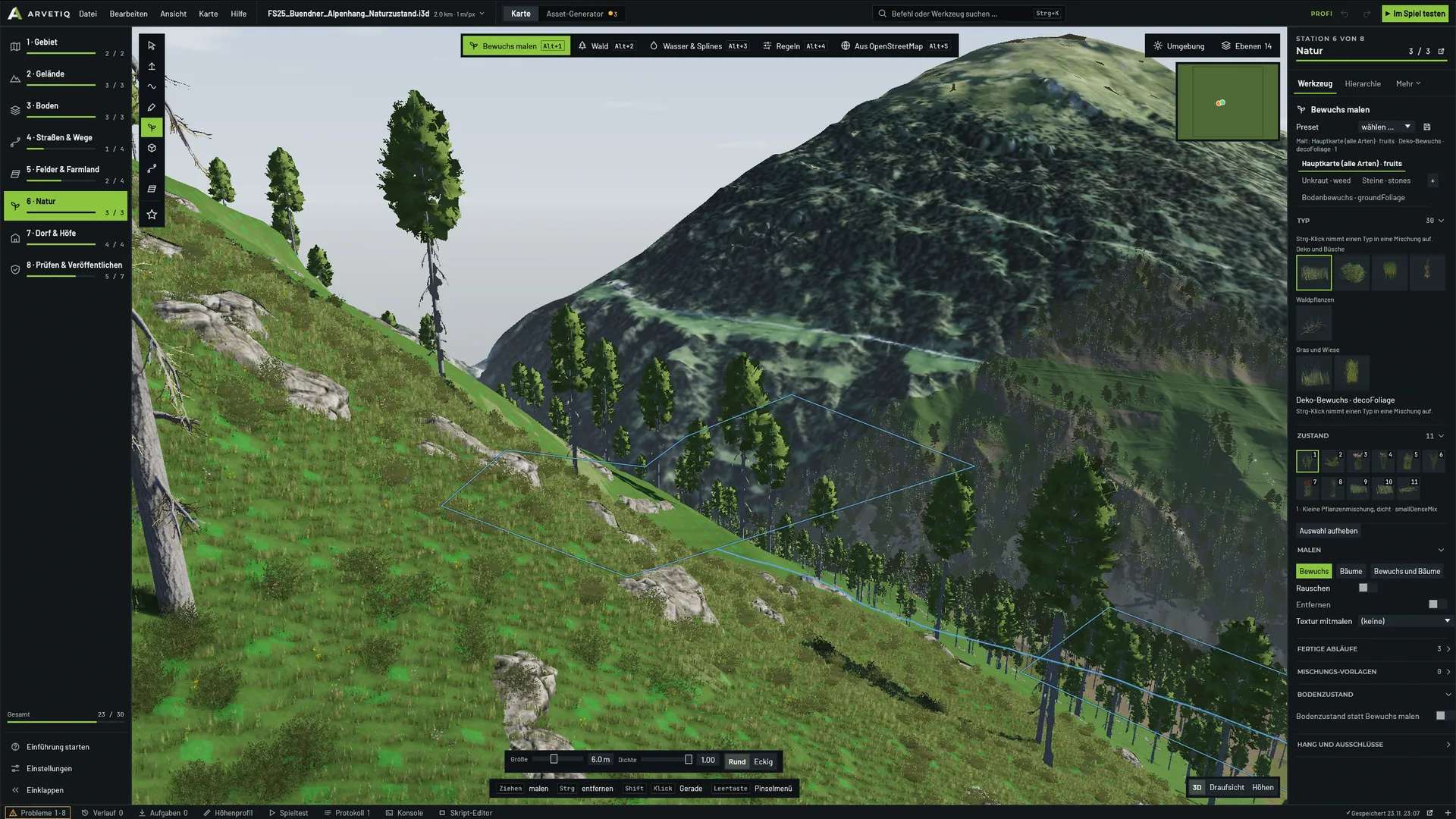
One guide per station
The eight stations
- 1/8
Area
You have a map to work on: newly created, built from a real place, or an existing one opened. It sits in a mod folder with a modDesc.xml, and its size is settled.
- 2/8
Terrain
The terrain has its shape: hills, valleys, level sites for farm and village, ramps where vehicles must climb. The station's checklist asks for more than one metre of height difference.
- 3/8
Ground
The ground shows what it is: grass, dirt, gravel, asphalt, concrete. A new map is grass everywhere. The station's checklist is met once more than one texture has been painted.
- 4/8
Roads & paths
The map has a road network: main roads, side roads and farm tracks that meet at junctions and crossings. The roadways are in the map as meshes, the terrain lies cleanly beneath them, and traffic has its lanes.
- 5/8
Fields & farmland
Every field has an outline, a number and lies on its own farmland. The farmland is the plot the player buys; without farmland the field belongs to nobody. Farm and village need one too. On saving, the editor writes fields and farmlands into the map's files.
- 6/8
Nature
The map is overgrown: grass and bushes as foliage, forest made of trees, streams and lakes. You paint small areas by hand. Rules fill large areas, and you can run them again at any time.
- 7/8
Village & farms
Buildings, farms and selling points stand on the map, plus decoration. The start point is at the farm. Everything stands on the ground, and every file comes from the game or from your mod.
- 8/8
Check & publish
The map runs in the game without errors in the log, the mod description is filled in, icon and loading screen exist, and a ZIP package is ready to pass on.
System requirements
“Minimum” is enough for maps up to 4x (4 km). “Recommended” is for large maps up to 16x (8 km) and for running the game alongside to test.
| Part | Minimum | Recommended |
|---|---|---|
| System | Windows 11, 64-bit. Windows 10 22H2 works, but without guarantee | Windows 11, 64-bit |
| Processor | 4 cores, such as Intel Core i5-8400 or AMD Ryzen 5 2600 | 8 cores |
| Memory | 8 GB | 16 GB, 32 GB for 16x maps with the game running alongside |
| Graphics | DirectX 12 or Vulkan, 2 GB of dedicated video memory. Integrated graphics for small maps only | 6 to 8 GB of video memory, such as GeForce RTX 2070 or Radeon RX 5700 XT |
| Storage | 3 GB free for the program and cache, plus your maps, on an SSD | NVMe SSD |
| Display | 1920 × 1080, mouse with a scroll wheel | 2560 × 1440 |
- Farming Simulator 25 installed, for the game data
- Internet only for updates, geodata, the assistant and the Asset Generator. The editor itself runs without it.
File and safety
Genuine, signed, checkable.
Where the file comes from
The editor is hosted on GitHub, in the official space cadoCG/ARVETIQ-MapEditor-Releases. Only download it there or via this page. Copies on other sites are not allowed and may have been altered.
Which file
- Setup (
ArvetiqMapEditor-win-Setup.exe): the usual way. Double-click, no admin rights, no wizard. The editor starts right away and gets a Start menu entry. Remove it under Settings › Apps › Installed apps; your maps and settings stay (see Where the editor keeps files). - Portable (
ArvetiqMapEditor-win-Portable.zip): no installation, for example from a USB stick. Unzip it and startarvetiq.exe.
Check the file
Setup and program are digitally signed. Every version comes with a file SHA256SUMS.txt that lists the checksums of all files. This is how you check in PowerShell that the file is genuine and unchanged:
Get-AuthenticodeSignature .\ArvetiqMapEditor-win-Setup.exe
Get-FileHash .\ArvetiqMapEditor-win-Setup.exe -Algorithm SHA256
The signature must be valid (“Valid”), signed by the provider named in the legal notice. The checksum must match the line in SHA256SUMS.txt.
Windows warning at first start
Microsoft SmartScreen does not know new programs yet, even when they are signed. For the first versions you may therefore see “Windows protected your PC”. It only means that the file has rarely been downloaded so far.
- First check the file as described above: valid signature, matching checksum.
- Click “More info” in the window. The publisher must be the name from the legal notice.
- If the name matches, click “Run anyway”. If it says “Unknown publisher” or shows a different name, do not start the file and download it again from this page.
If Microsoft Defender flags the file, do not switch it off. Write to the address in the legal notice; the provider submits the file to Microsoft for review.
Part of the platform
More with a free account.
The editor stays free. You only need the free account for the Asset Generator and the AI assistant.
Pricing and credits- Asset GeneratorHave missing objects built, from 0.50 credits.
- AI assistant30 questions a day for free.
- Connect the editor1 credit as a gift once your editor is connected.
Day to day
Updates, folders and help
What matters after installing and what to do when something goes wrong.
Go to helpUpdates
After starting, the editor checks in the background, at most once a day, whether a new version is available. It downloads only the differences and installs them at the next start, never while a map has unsaved changes. You can switch the check off in the settings.
Game version
The editor reads the version of your game from the installation. If the descVersion in a map’s modDesc.xml does not match it, the Problems list reports it and raises the number with one click. After a game patch, have a look at the Problems list before you share the map.
Where the editor keeps files
| What | Folder | When uninstalling |
|---|---|---|
| Program | %LOCALAPPDATA%\ArvetiqMapEditor | removed |
| Settings, backups, logs | %APPDATA%\ARVETIQ MapEditor | kept |
| Your own templates, rule sets, catalogs and textures | %LOCALAPPDATA%\Arvetiq | kept |
| Cache: map tiles, geodata, unpacked mods | %LOCALAPPDATA%\ARVETIQ MapEditor\cache | kept, safe to delete at any time |
| Your maps | wherever you save them, usually the game’s mods folder | kept |
Uninstalling removes the program, the Start menu entry and the handler for arvetiq:// links. Your data stays, so a later installation picks up where you left off. To remove everything, delete the three folders from the table afterwards. In the editor, Settings › Diagnostics › “Open data folder” opens the one with your settings. The portable version uses the same folders.
If something goes wrong
- The editor does not start or the window stays black: update your graphics driver from the manufacturer’s site (NVIDIA, AMD or Intel). If starting with DirectX 12 and Vulkan fails, the editor restarts itself once with OpenGL. If it finds no suitable graphics at all, a window explains why and shows where the log file is.
- The game is not found: the editor looks for the Steam, Epic, Xbox app and GIANTS versions. If your game is somewhere else, pick the folder in the settings with “Choose game folder …”.
- The map does not show up in the game: open the Problems list in the editor; it shows errors with a one-click fix. What the game complains about while loading is in
Documents\My Games\FarmingSimulator2025\log.txt.
The editor’s log file is %APPDATA%\ARVETIQ MapEditor\logs\arvetiq.log. Under Settings › Diagnostics, “Open log folder” opens the folder. “Save diagnostic package …” packs system info and logs, without user paths, into a zip file. “Report a problem” opens the bug form on GitHub with version, Windows and graphics card already filled in.
What changed in each version is listed under What’s new. You can also send questions, ideas and bugs straight from the editor: Help › “Send feedback …”.
Privacy
When you download, GitHub receives your IP address, the time and the file name. What is transmitted for downloads and updates is described in the privacy policy.
At first start the editor shows the terms of use. It opens no connection until you accept them.